

A computer has many parts that work together to take input, process data, store information, and show results. Some parts sit outside the computer, such as the keyboard, mouse, and monitor. Other parts stay inside the computer case, such as the CPU, RAM, motherboard, and storage drive.
In this guide, you will learn the main parts of a computer with pictures and functions in simple English. This article is useful for students, kids, beginners, teachers, and anyone who wants to understand computer hardware clearly.
In This Page
What Is a Computer?
A computer is an electronic machine that accepts information, processes it, stores data, and gives results. It follows instructions from software programs and uses hardware parts to complete tasks.
For example, when you type on a keyboard, the computer receives input. Then, the CPU processes your command. After that, the monitor shows the result on the screen. Therefore, every computer needs input, processing, storage, and output parts to work properly.
Computers come in different forms, such as:
- Desktop computers.
- Laptop computers.
- Notebook computers.
- Gaming computers.
- Tablets.
- Smartphones.
- Personal computers.

For more , you may also enjoy our guide on Types of Fast Food.
Computer Parts and Their Functions Chart
This chart gives a quick look at important computer parts and their main functions.
| Computer Part | Type | Main Function |
|---|---|---|
| CPU | Processing part | Processes instructions and controls tasks. |
| Motherboard | Internal part | Connects all major computer parts. |
| RAM | Memory part | Stores temporary data while programs run. |
| ROM | Memory part | Stores basic permanent startup instructions. |
| Storage Drive | Storage part | Saves files, apps, and the operating system. |
| Power Supply | Power part | Provides electricity to internal parts. |
| Keyboard | Input device | Lets users type letters, numbers, and commands. |
| Mouse | Input device | Moves the pointer and selects items. |
| Monitor | Output device | Shows text, images, videos, and results. |
| Printer | Output device | Prints documents and pictures on paper. |
| Speakers | Output device | Play sound, music, voices, and alerts. |
| Microphone | Input device | Records voice or sound into the computer. |
| GPU | Processing part | Handles graphics, videos, games, and visual tasks. |
| Cooling Fan | Cooling part | Keeps internal parts cool. |
| Network Card | Communication part | Connects the computer to networks or the internet. |
| Sound Card | Audio part | Helps process sound input and output. |
Learning Computer Parts with Pictures
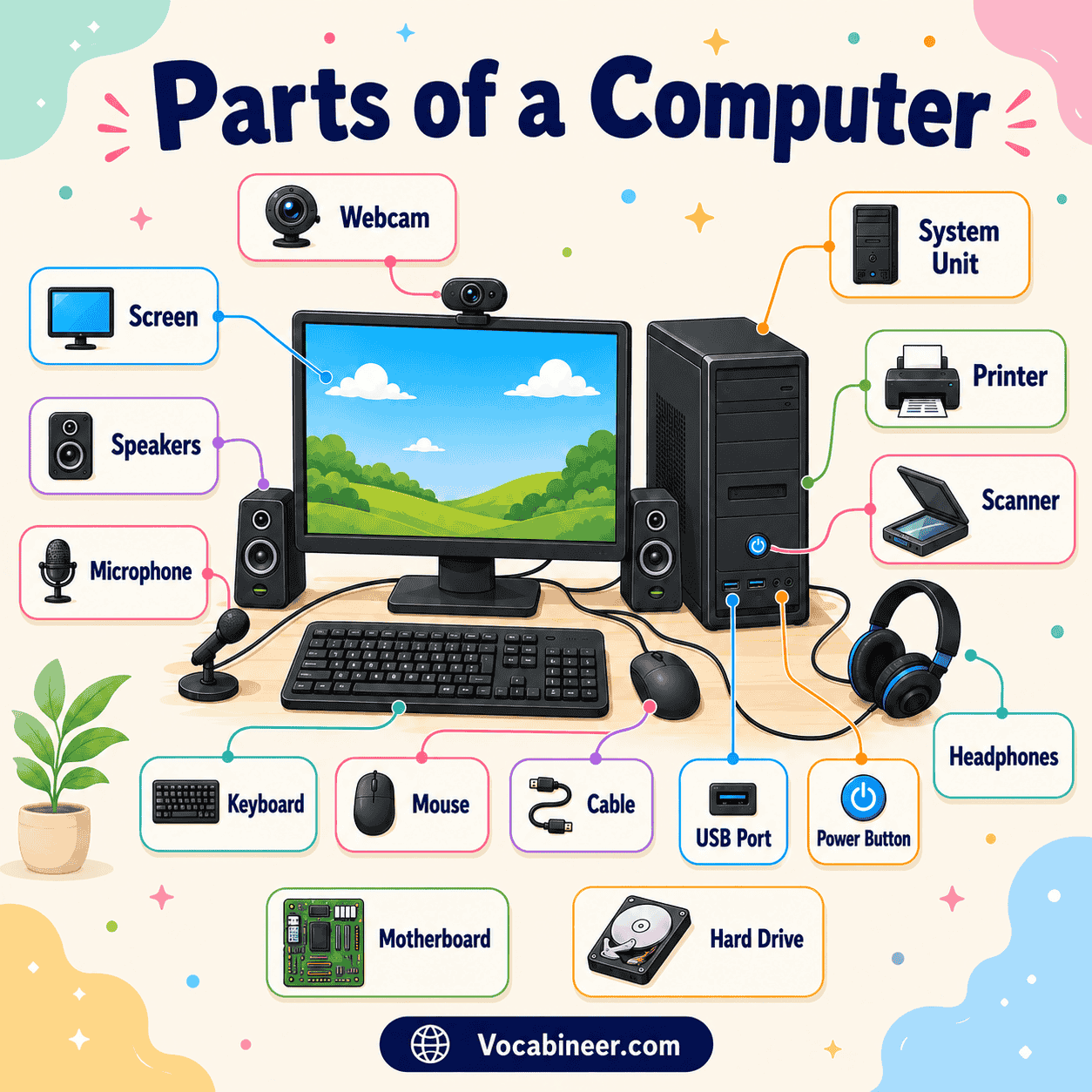
Pictures make computer parts easier to recognize. External parts like the keyboard, mouse, monitor, printer, and speakers are easy to identify because users can see and touch them.
However, internal parts can be harder to understand without pictures. A labeled picture of the inside of a computer helps learners recognize the CPU, RAM, motherboard, GPU, storage drive, power supply, and cooling fan. As a result, picture-based learning makes computer hardware vocabulary clearer and easier to remember.
Pictures are especially helpful for:
- Students learning computer basics.
- Kids identifying computer parts.
- Beginners studying hardware names.
- Teachers explaining computer lessons.
- English learners building technology vocabulary.
How Computer Parts Work Together
Computer parts do not work alone. They work as a system. Each part has a job, and together they complete input, processing, storage, and output tasks.
| Step | What Happens | Example Parts |
|---|---|---|
| Input | The user sends data into the computer. | Keyboard, mouse, microphone, scanner |
| Processing | The computer works on the data. | CPU, RAM, GPU |
| Storage | The computer saves data for later use. | HDD, SSD, USB drive |
| Output | The computer shows, prints, or plays results. | Monitor, printer, speakers |
For example, when you type a sentence, the keyboard sends input. Then, the CPU processes it, RAM helps the program run, and the monitor shows the text. If you save the file, the storage drive keeps it for later.
Main Parts of a Computer
The main parts of a computer are the essential parts that help the system work. Without these parts, a computer cannot perform basic tasks properly.
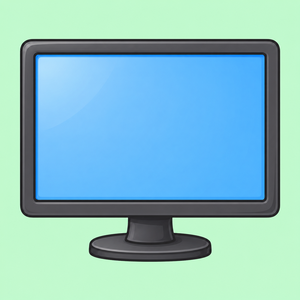
- Monitor – Shows text, images, videos, and other information on the screen.
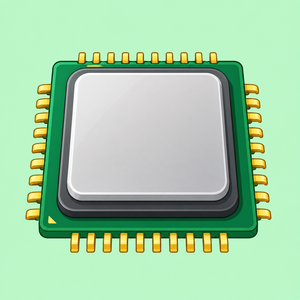
- CPU – Processes instructions and controls the main work of the computer.
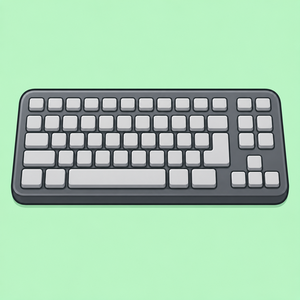
- Keyboard – Helps you type letters, numbers, and commands.
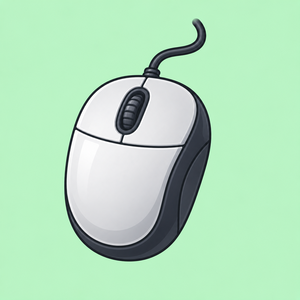
- Mouse – Helps you point, click, select, and move items on the screen.
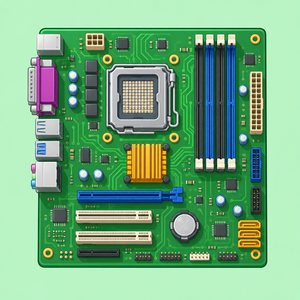
- Motherboard – The main circuit board that connects important computer parts.
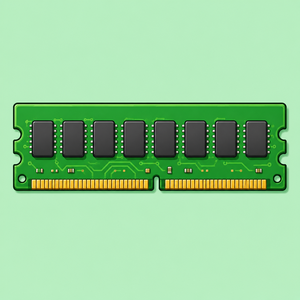
- RAM – Temporary memory that helps programs run smoothly.
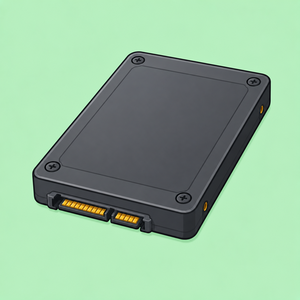
- Storage Drive – Saves files, apps, documents, photos, and videos.
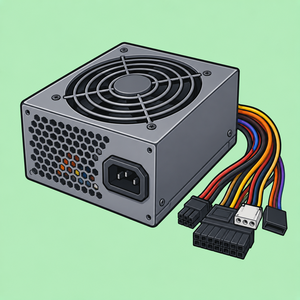
- Power Supply – Provides electricity to the computer’s internal parts.
- Speakers – Produce sound from the computer.
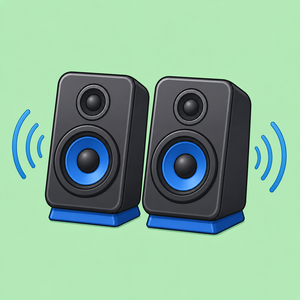
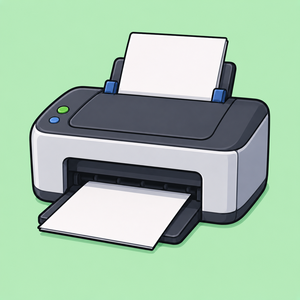
- Printer – Prints documents, pictures, and other files on paper.
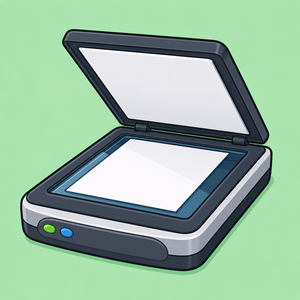
- Scanner – Copies paper documents or pictures into digital form.
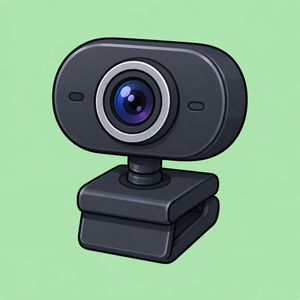
- Webcam – Captures video for online meetings, classes, and calls.
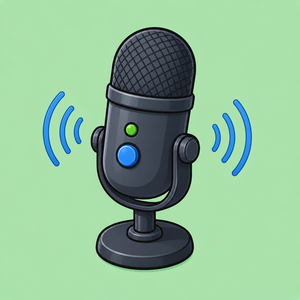
- Microphone – Records voice and helps with audio communication.
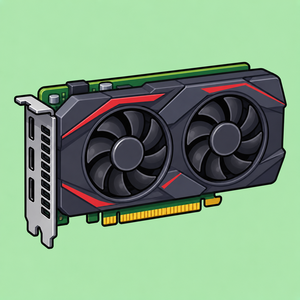
- Graphics Card – Helps display images, videos, games, and graphics.
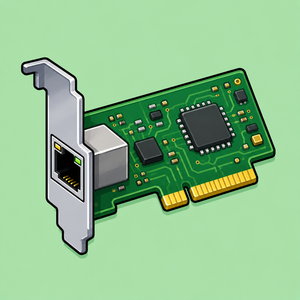
- Network Card – Helps the computer connect to the internet or a network.
These parts make up the basic computer system. In a desktop computer, many internal parts sit inside the system unit or computer case. Meanwhile, a laptop combines many of these parts into one portable device.
Internal Parts of a Computer
Internal computer parts are found inside the computer case. These parts process data, store information, control hardware, provide power, and keep the system running.
- CPU — The central processing unit handles instructions, calculations, and commands.
- Motherboard — The main circuit board connects all important computer parts.
- RAM — Temporary memory that helps programs run quickly.
- ROM — Stores basic permanent instructions used during startup.
- Storage Drive — Keeps files and programs permanently.
- GPU — Processes graphics, videos, games, and visual tasks.
- Power Supply Unit — Provides power to internal components.
- Cooling Fan — Moves air and helps prevent overheating.
- Heat Sink — Pulls heat away from parts like the CPU or GPU.
- Network Card — Helps connect the computer to a network or internet.
- Sound Card — Supports audio input and output.
- CMOS Battery — Helps save basic system settings, such as date and time.
Internal parts are important because they control performance, speed, storage, graphics, power, and connectivity.
External Parts of a Computer
External computer parts sit outside the computer case. Users can easily see, touch, and use these parts. They help people interact with the computer.
- Monitor — Displays text, pictures, videos, and results.
- Keyboard — Helps users type letters, numbers, and commands.
- Mouse — Moves the pointer and selects items on the screen.
- Printer — Prints documents, worksheets, and pictures.
- Speakers — Play music, voices, alerts, and other sounds.
- Microphone — Records voice and sound.
- Webcam — Records video or supports video calls.
- Scanner — Copies paper documents and turns them into digital files.
- Headphones — Let users hear sound privately.
- External Hard Drive — Stores files outside the computer.
- USB Flash Drive — Transfers and stores files.
- Projector — Shows large visuals on a wall or screen.
External parts are useful because they help users type, click, listen, speak, print, scan, and view information.
Input Devices of a Computer
Input devices send information into the computer. They allow users to type, click, speak, scan, record, or control the computer.
- Keyboard — Lets users type letters, numbers, symbols, and commands.
- Mouse — Helps users move the pointer, click buttons, and select items.
- Microphone — Records voice or sound and sends it to the computer.
- Scanner — Converts paper documents or photos into digital files.
- Webcam — Captures video for meetings, classes, and recordings.
- Touchpad — Works like a mouse on laptops.
- Touchscreen — Lets users tap, swipe, and type directly on the screen.
- Joystick — Helps control games and simulations.
- Graphics Tablet — Lets artists draw directly into the computer.
- Barcode Scanner — Reads product codes and sends data into the system.
Input devices are important because they help users give commands and send data into the computer.
Output Devices of a Computer
Output devices show, print, or play the results created by the computer. After the computer processes data, output devices help users see or hear the final result.
- Monitor — Shows text, images, videos, websites, and software windows.
- Printer — Prints documents, photos, assignments, and reports.
- Speakers — Play sound, music, alerts, and voices.
- Headphones — Let users listen privately.
- Projector — Displays large images or presentations on a screen.
- Plotter — Prints large technical drawings, maps, or designs.
- LED Display — Shows visual output in digital boards and displays.
Output devices are useful in classrooms, offices, homes, gaming setups, and presentations.
Storage Devices of a Computer
Storage devices save data permanently or temporarily. They help users keep files, photos, videos, software, documents, and system files.
- Hard Disk Drive (HDD) — Stores large amounts of data permanently.
- Solid State Drive (SSD) — Stores data and helps the computer start and load programs faster.
- USB Flash Drive — A small portable device used to move and store files.
- Memory Card — A small storage card used in cameras, phones, and some computers.
- External Hard Drive — A portable storage device used for backups and large files.
- Optical Disc — Stores data on CDs, DVDs, or Blu-ray discs.
- Cloud Storage — Saves files online so users can access them from different devices.
Storage devices are important because they keep information safe even after the computer turns off.
Processing Parts of a Computer
Processing parts help the computer understand commands and complete tasks. They are important for speed, performance, graphics, and multitasking.
- CPU — Runs instructions, performs calculations, and controls computer operations.
- GPU — Handles graphics, videos, games, animations, and visual tasks.
- RAM — Holds temporary working data while programs are active.
- Motherboard — Allows processing parts to communicate with other hardware.
- Chipset — Helps manage communication between the CPU, memory, and connected parts.
The CPU handles general tasks, while the GPU focuses more on graphics and visual work. Therefore, a computer with a strong CPU and enough RAM usually runs programs more smoothly.
Power and Cooling Parts
Power and cooling parts keep the computer running safely. They supply electricity and control heat inside the system.
- Power Supply Unit — Converts electricity from the wall into power for internal parts.
- Battery — Powers laptops when they are not plugged in.
- Cooling Fan — Moves air inside the computer case to reduce heat.
- Heat Sink — Pulls heat away from hot parts like the CPU.
- Thermal Paste — Helps transfer heat between the CPU and heat sink.
- Liquid Cooling System — Uses liquid to cool high-performance computers.
- Power Cable — Connects the computer to electricity.
- Laptop Charger — Charges the laptop battery and provides power.
Computers need cooling because parts like the CPU and GPU can become hot during use. As a result, fans and heat sinks help protect the system from overheating.
Communication and Audio Parts
Communication and audio parts help the computer connect to networks, the internet, and sound devices.
- Network Card — Connects the computer to a wired or wireless network.
- Wi-Fi Adapter — Helps the computer connect to Wi-Fi.
- Bluetooth Adapter — Connects wireless devices like headphones, keyboards, and mice.
- Ethernet Port — Connects the computer to a wired network.
- Sound Card — Handles audio input and output.
- Speakers — Play sound from the computer.
- Microphone — Sends voice or sound into the computer.
- Headphones — Let users listen privately.
Many modern computers have built-in network and sound features. However, some users add separate cards or adapters for better performance.
Computer Ports and Connectors
Computer ports and connectors allow users to attach external devices. They help computers connect with screens, storage devices, internet cables, headphones, chargers, and other equipment.
- USB Port — Connects keyboards, mice, flash drives, printers, and other devices.
- HDMI Port — Sends video and audio to monitors, TVs, or projectors.
- Audio Jack — Connects headphones, microphones, or speakers.
- Ethernet Port — Connects the computer to a wired network.
- Charging Port — Connects a laptop or device to power.
- DisplayPort — Sends video to monitors.
- Memory Card Slot — Reads memory cards from cameras or phones.
- VGA Port — Older video port used for monitors and projectors.
- Power Connector — Connects a desktop computer to electricity.
- Thunderbolt Port — Supports fast data transfer and display connections on some devices.
Ports are useful because they let the computer communicate with many external devices.
Computer Peripherals and Accessories
Computer peripherals are extra devices connected to a computer. They can add input, output, storage, communication, or comfort features.
Common peripherals and accessories include:
- Keyboard.
- Mouse.
- Printer.
- Scanner.
- Webcam.
- Speakers.
- Microphone.
- Headphones.
- External hard drive.
- USB flash drive.
- USB hub.
- Mouse pad.
- External monitor.
- Game controller.
- Drawing tablet.
Some peripherals are necessary for desktop computers, while others are optional. For example, a keyboard and mouse are basic input devices, but a drawing tablet is mainly useful for artists and designers.
Parts Found in Different Types of Computers
Different computers have different designs, but many parts work in similar ways. A desktop, laptop, notebook, and gaming computer all need parts for input, processing, storage, output, power, and communication.
Desktop Computer Parts
A desktop computer usually includes a system unit, monitor, keyboard, mouse, power supply, storage drive, RAM, CPU, and motherboard. It is common in homes, schools, offices, and computer labs.
Laptop Computer Parts
A laptop has a built-in screen, keyboard, touchpad, battery, webcam, speakers, microphone, storage drive, RAM, CPU, and motherboard. It is portable and easy to carry.
Notebook Computer Parts
A notebook is usually smaller and lighter than a regular laptop. It includes many of the same parts, such as a screen, keyboard, battery, RAM, storage, and processor.
Gaming Computer Parts
A gaming computer usually has a powerful CPU, dedicated GPU, extra RAM, fast SSD, strong cooling system, and high-quality power supply. These parts help games run smoothly.
Personal Computer Parts
A personal computer may be a desktop or laptop used for school, work, browsing, typing, watching videos, and daily tasks. It usually includes basic hardware like CPU, RAM, storage, keyboard, mouse, and display.
Common Computer Part Comparisons
This table explains common computer terms that students and beginners often confuse.
| Comparison | Main Difference | Simple Examples |
|---|---|---|
| Hardware vs Software | Hardware means physical parts; software means programs and instructions. | Hardware: keyboard, CPU, monitor. Software: browser, game, operating system. |
| Internal Parts vs External Parts | Internal parts sit inside the computer case; external parts sit outside and connect to the computer. | Internal: CPU, RAM, motherboard. External: keyboard, mouse, printer. |
| Input Devices vs Output Devices | Input devices send data into the computer; output devices show, print, or play results. | Input: keyboard, mouse, scanner. Output: monitor, printer, speakers. |
| RAM vs Storage Drives | RAM stores temporary working data; storage drives save files permanently. | RAM helps programs run. SSD or HDD saves documents, apps, and photos. |
| CPU vs GPU | CPU handles general instructions; GPU handles graphics and visual tasks. | CPU runs programs. GPU improves games, videos, and design work. |
| HDD vs SSD | HDD uses spinning disks; SSD uses faster flash memory. | HDD offers large storage. SSD gives faster startup and loading. |
| Monitor vs Projector | A monitor shows output on a screen; a projector shows large visuals on a wall or screen. | Monitor for daily use. Projector for classrooms or meetings. |
FAQs
The CPU, or Central Processing Unit, acts like the brain of the computer. It reads instructions, performs calculations, runs programs, and helps control other parts of the system.
RAM stores temporary data while the computer is working. Storage drives, such as HDDs and SSDs, save files permanently. RAM clears when the computer turns off, but storage drives keep data for later use.
Computers need cooling fans because parts like the CPU and GPU can become hot during use. Cooling fans move air through the computer case and help prevent overheating, slow performance, or damage.
Input devices send data into the computer, such as a keyboard, mouse, microphone, or scanner. Output devices show, print, or play results, such as a monitor, printer, speakers, or projector.
The motherboard is the main circuit board of the computer. It connects the CPU, RAM, storage drive, GPU, power supply, ports, and other hardware so they can communicate and work together.
Summary
Computer parts work together to take input, process information, store data, and give output. The CPU processes instructions, the motherboard connects parts, RAM helps active programs run, and storage drives save files for later use. Meanwhile, input devices like the keyboard and mouse help users send commands, and output devices like the monitor and speakers show or play results.
Learning the parts of a computer with pictures and functions makes it easier to understand computer lessons, follow basic instructions, and recognize hardware in daily life. When you know the names and roles of computer parts, you can use computers with more confidence.
Read More